TL;DR: The Mackie ProFX works nicely as a Linux desktop sound card. To make it more useful, there is a trick to split the audio into two stereo outputs, instead of using it as a bare 4 channel audio output.
I use a Mackie ProFX mixer as the audio interface on my desktop. It is not a complicated studio setup. I want normal desktop audio, reliable headphones, and speakers that can be controlled separately without having to remember which physical USB channel pair does what. In addition to that, I have a separate PC with a Traktor DJ controller that uses the mixer as it’s output. Everything connects to a pair of KRK Rokit 5 speakers.
The issue with using this mixer on my desktop PC, is Linux detects the sound card as a single 4-channel output instead of separating them as 2 2-channel outputs. The Windows drivers support this by default. In Linux, we of course have to do a bit more tinkering.
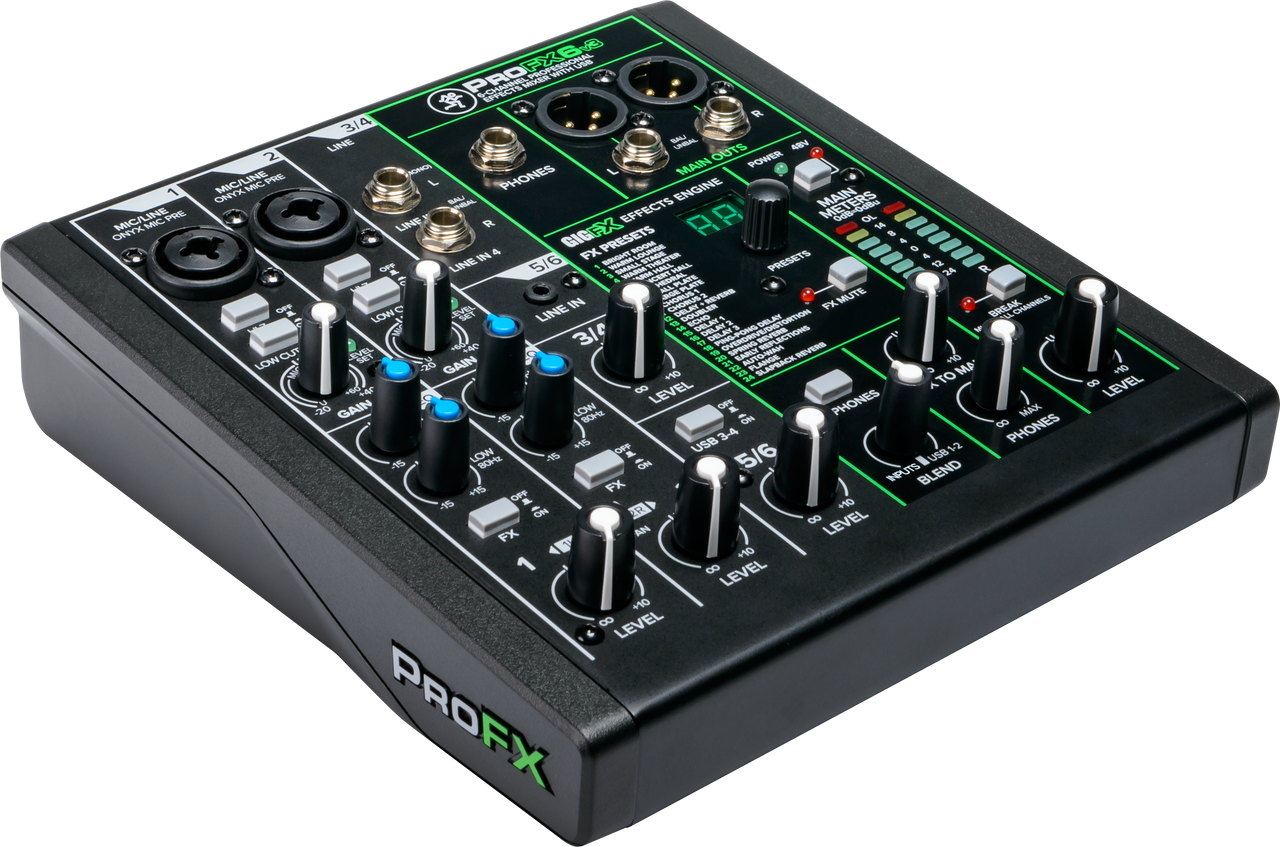 The Mackie ProFX mixer provides the USB audio interface and the physical controls.
The mixer shows up as a USB audio device with four output channels. That is technically correct, but not intiutive enough for me to easily switch between. I do not want every application to know about front-left, front-right, rear-left, and rear-right. I want applications to see a normal headphone output and a normal speaker output.
PipeWire makes that easy with two loopback devices.
The PipeWire split
The relevant config lives in ~/.config/pipewire/pipewire.conf.d/10-split-channels.conf:
context.modules = [
    # Create a virtual stereo output that desktop applications can choose.
    {   name = libpipewire-module-loopback
        args = {
            node.description = "Headphones"
            # This is the visible sink shown in pavucontrol.
            capture.props = {
                node.name = "headphones_virtual"
                media.class = "Audio/Sink"
                audio.position = [ FL FR ]
                device.icon-name = "audio-headphones"
            }
            # This hidden stream forwards the virtual sink to the real Mackie channels.
            playback.props = {
                node.name = "headphones_real_link"
                media.class = "Stream/Output/Audio/Internal"
                node.hidden = true
                target.object = "alsa_output.usb-LOUD_Technologies_Inc._ProFX-00.analog-surround-40"
                audio.position = [ FL FR ]
                node.dont-reconnect = true
                node.passive = true
            }
        }
    }
    # Create another virtual stereo output for the speaker channel pair.
    {   name = libpipewire-module-loopback
        args = {
            node.description = "Speakers"
            # This is the second visible sink shown in pavucontrol.
            capture.props = {
                node.name = "speakers_virtual"
                media.class = "Audio/Sink"
                audio.position = [ FL FR ]
                device.icon-name = "audio-speakers"
            }
            # This hidden stream forwards audio to the rear channel pair on the Mackie.
            playback.props = {
                node.name = "speakers_real_link"
                media.class = "Stream/Output/Audio/Internal"
                node.hidden = true
                target.object = "alsa_output.usb-LOUD_Technologies_Inc._ProFX-00.analog-surround-40"
                audio.position = [ RL RR ]
                node.dont-reconnect = true
                node.passive = true
            }
        }
    }
]
The first loopback creates a virtual stereo sink called Headphones and sends it to the front-left/front-right channels on the Mackie device. The second creates Speakers and sends it to rear-left/rear-right.
The important part is that both virtual sinks look like ordinary stereo outputs to desktop applications. The config makes sure to route them to the correct outputs on the sound card.
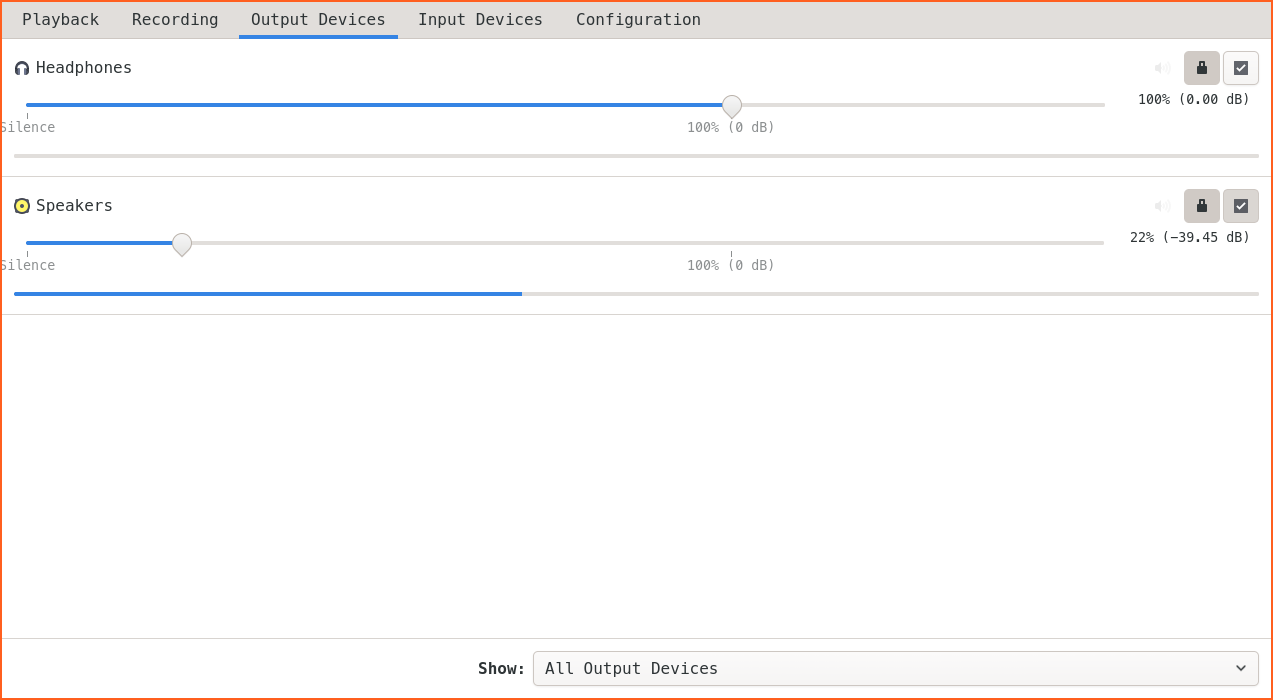 Really nice output selection list: Headphones and Speakers. Nothing else.
Stable sample rate
There is one more small config file, ~/.config/pipewire/pipewire.conf.d/50-rate.conf:
context.properties = {
    default.clock.rate = 48000
    default.clock.allowed-rates = [ 48000 ]

    default.clock.quantum = 1024
    default.clock.max-quantum = 2048
}
This keeps the graph at 48 kHz and uses a conservative quantum. This is a conservative setting, best suitable for a normal desktop and gaming environment. Lower latency and higher clock rate is definitely possible but I noticed some issues where I had to restart the pipewire service to get my sound back to normal when doing so.